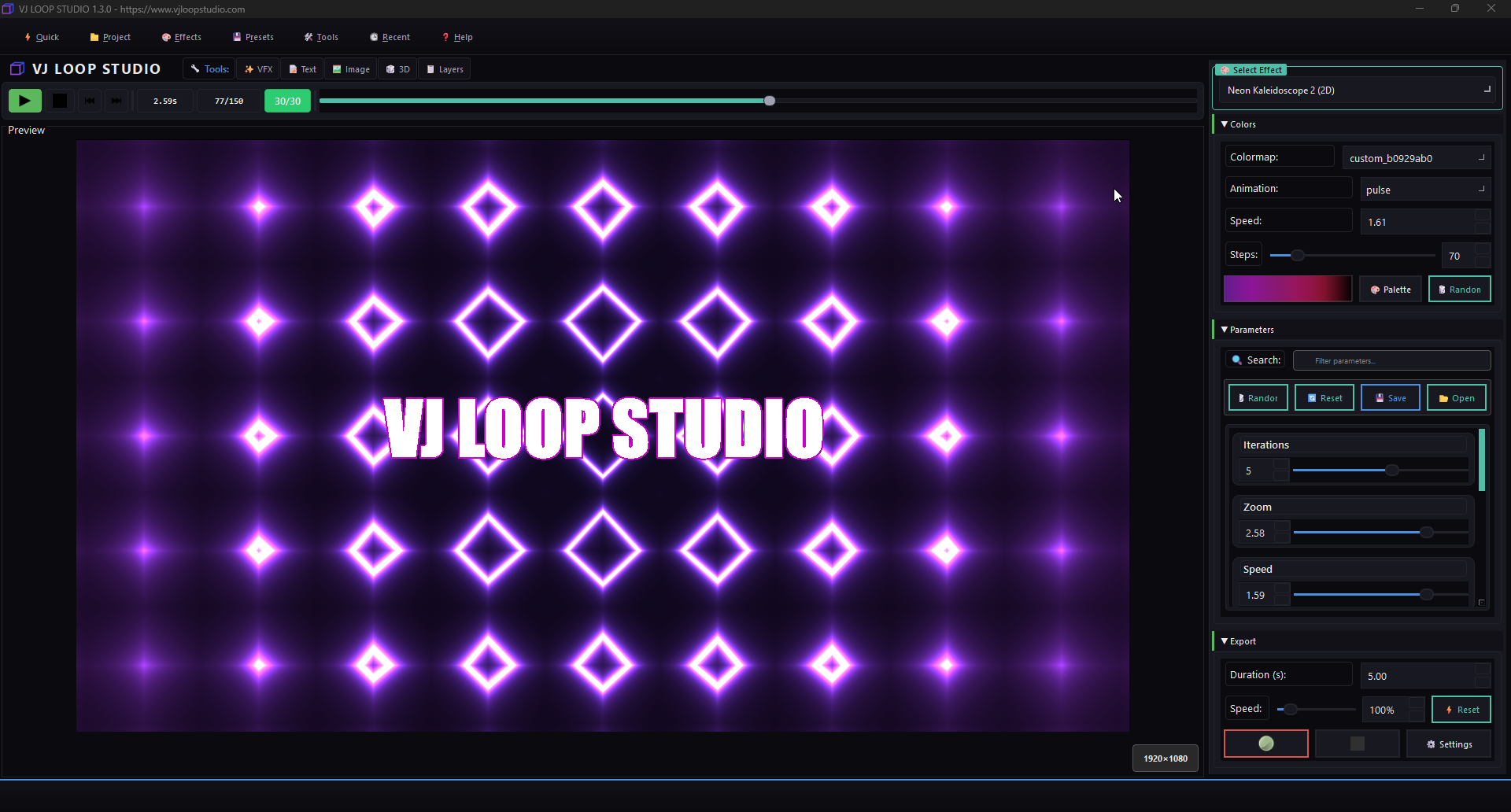
How to Export VJ Loops for Resolume, MadMapper, and TouchDesigner
Exporting your custom VJ loops from VJ Loop Studio for use in popular VJ and mapping software is easy! This guide will walk you through the process, ensuring your visuals look stunning in Resolume, MadMapper, and TouchDesigner.
1. Prepare Your Visuals
Before exporting, make sure your effect is ready:
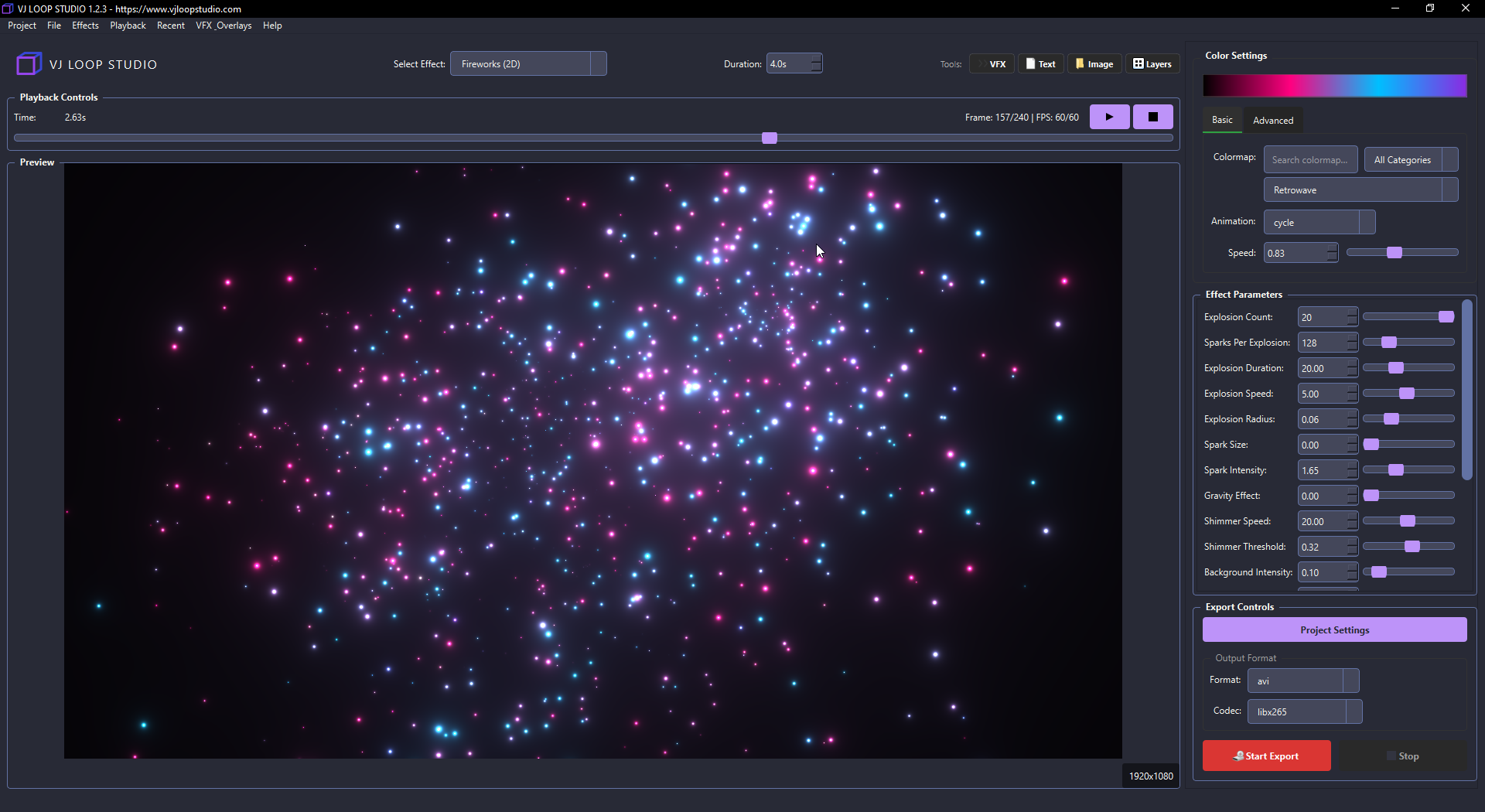
- Select or create the effect you want to export.
- Adjust parameters, colors, and animation speed as needed.
2. Open the Export Panel
Click the Export button or navigate to the export controls:
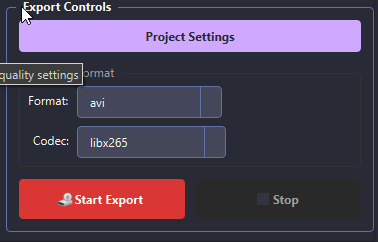
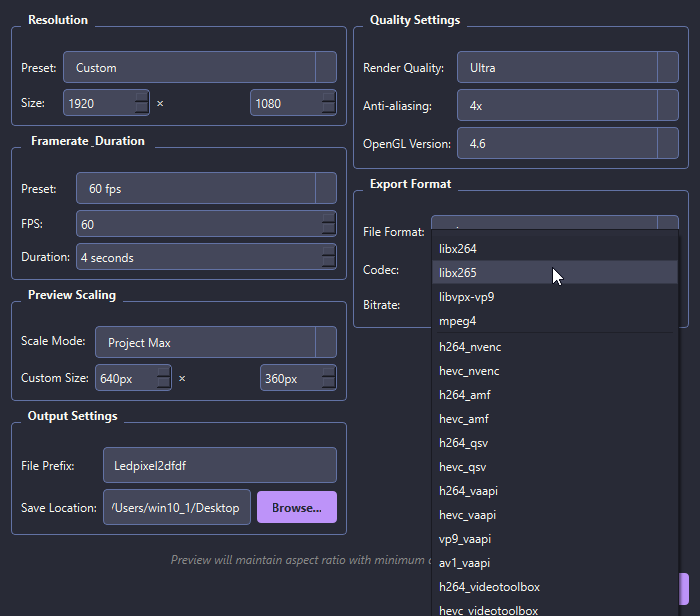
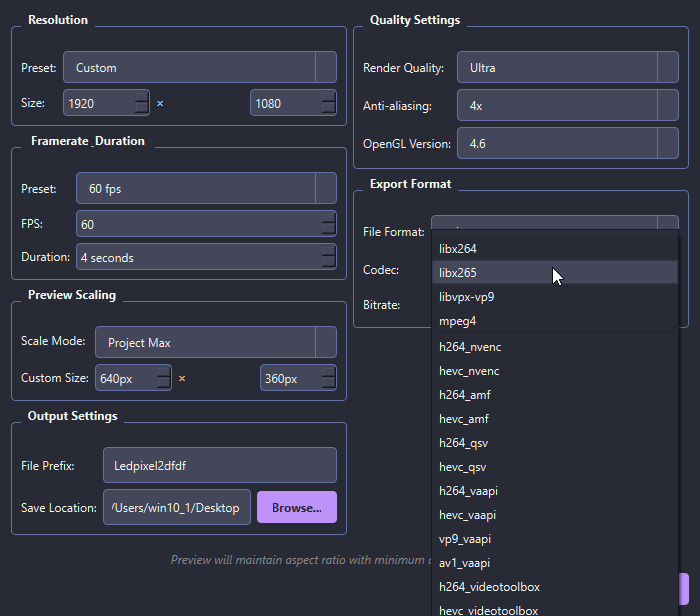
- Choose your desired resolution (e.g., 1920x1080 for HD, 3840x2160 for 4K).
- Select the appropriate codec (H.264/MP4 is widely supported).
3. Set Export Settings for Compatibility
- Format: MP4 (recommended for Resolume, MadMapper, TouchDesigner)
- Frame Rate: 30 or 60 FPS (match your project settings)
- Looping: Enable seamless loop if needed
4. Export Your Loop
- Click Start Export and wait for the process to finish.
- Your exported file will be saved in the chosen directory.
5. Import into Your VJ Software
Resolume:
- Open Resolume and drag your exported MP4 file into the media bin.
- Set the clip to loop mode for continuous playback.
MadMapper:
- Import the video file into MadMapper’s media library.
- Assign it to your LED or projection surfaces.
TouchDesigner:
- Use a Movie File In TOP to load your exported loop.
- Connect it to your visual pipeline as needed.
Tips for Best Results
- Use high-quality export settings for final shows.
- Test your loop in the target software before your event.
- For transparent backgrounds, export with alpha channel (if supported).
Need more help? Check out our User Guide or Contact Support.