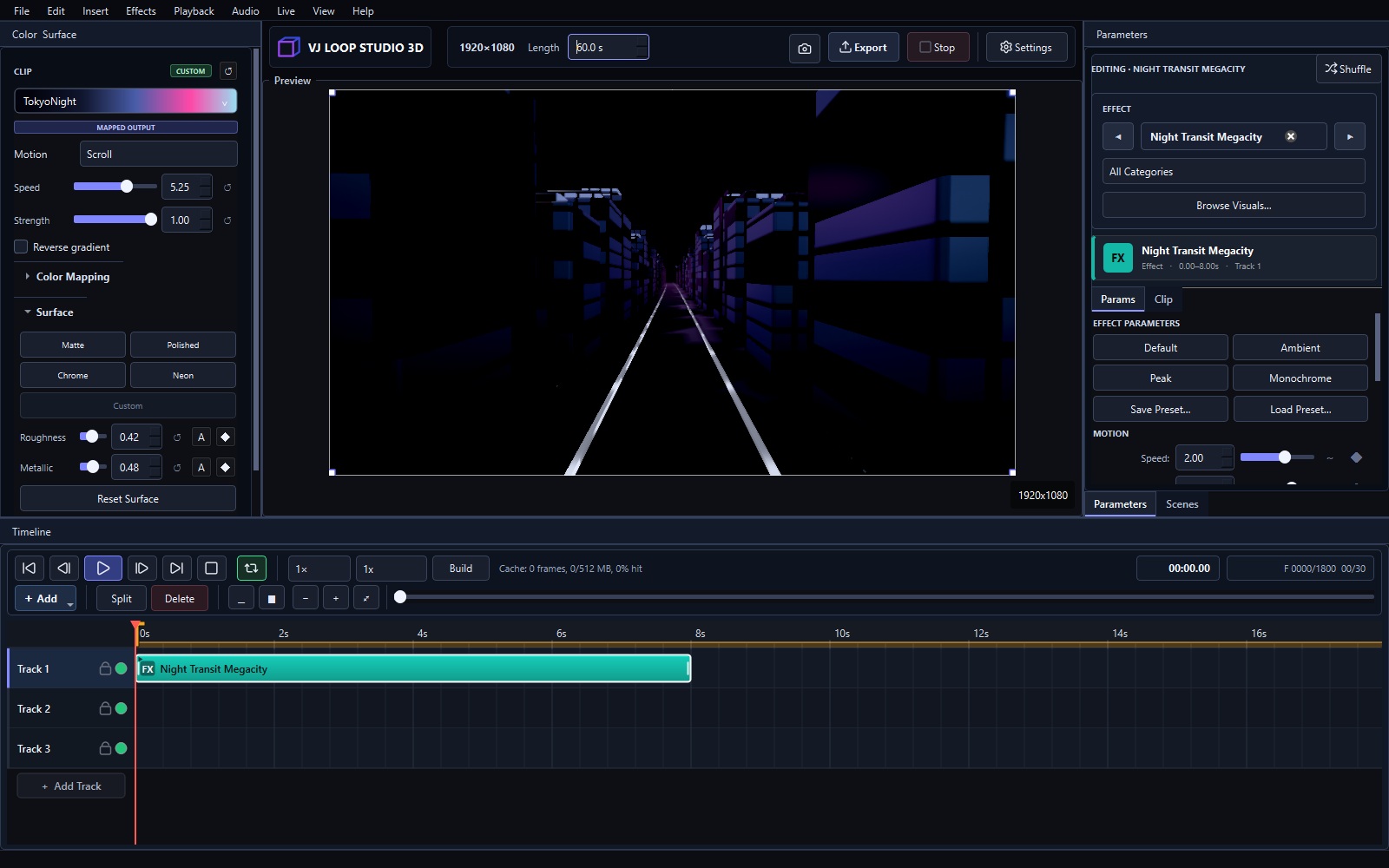
VJ Loop Studio 3D is a Windows production workspace for creating original motion visuals. A project can combine effect, 3D model, video, image, overlay, text, lyrics, and audio clips on a multi-track timeline.
VJ Loop Studio 3D at a glance
| Platform | Windows 10/11 (64-bit) |
|---|---|
| Built-in effects | 124, across 2D Graphics, 3D Tunnels, 3D Scenes, Geometry & Material, Stage Essentials, Fractals, Particles & Fields, Volume & Organic |
| Timeline | Multi-track, with effect, 3D model, video, image, overlay, text, lyrics, and audio clips |
| Clip transitions | Cut, Fade, Dissolve, Slide, Zoom |
| Audio reactivity | Nine analysis sources plus seven modulator shapes, per parameter |
| Live output | Fullscreen/second screen, Spout, NDI — with MIDI and OSC control |
| Export | MP4, MKV, AVI, MOV, GIF up to 8K; H.264, H.265, VP9 |
| Licence | €99 (+VAT) one-time, no subscription |
The workspace

The interface is organized around four working areas:
- Live preview — the final frame at the project resolution and aspect ratio.
- Right panel — four tabs: Color & Surface for palette mapping, motion, material and lighting; Scenes for composed looks; Audio Link for audio reactivity; and Media for the project’s media pool.
- Parameters inspector — effect selection, authored looks, clip settings, and effect-specific controls.
- Timeline — tracks, clips, transport, work area, fades, and animation timing.
Panels are dockable. Use the View menu to show hidden panels or restore the default layout. The Tools menu collects project-wide helpers such as the color palette editor and Auto Audio Link.
Start a project
Create or open a project from the File menu — Open Recent lists the last projects directly. A project workspace keeps the project file, imported media, presets, and generated previews together so the timeline remains portable.
Open Settings to choose resolution, frame rate, duration, preview quality, export format, codec, and output location.
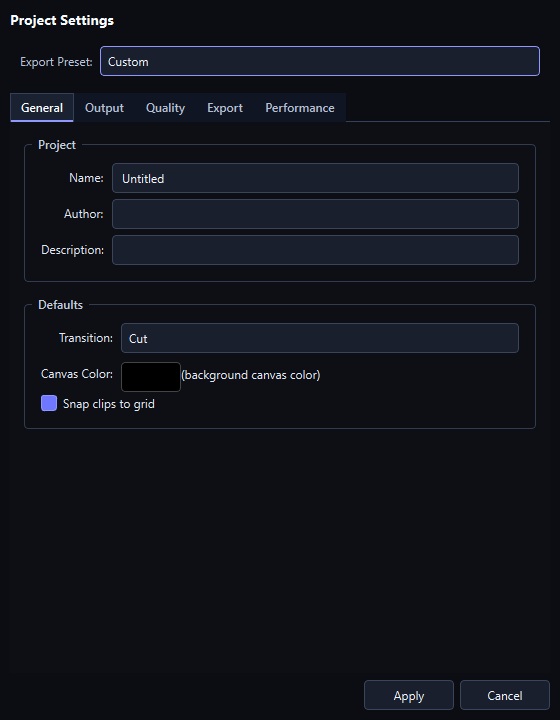
For most projects, start at 1920×1080 and 30 or 60 fps. Choose the final LED-wall or display aspect ratio before detailed composition work.
Choose and shape an effect
Use Browse Visuals or the searchable effect field in the Parameters panel. The catalogue contains exactly 124 effects across eight production-oriented groups.
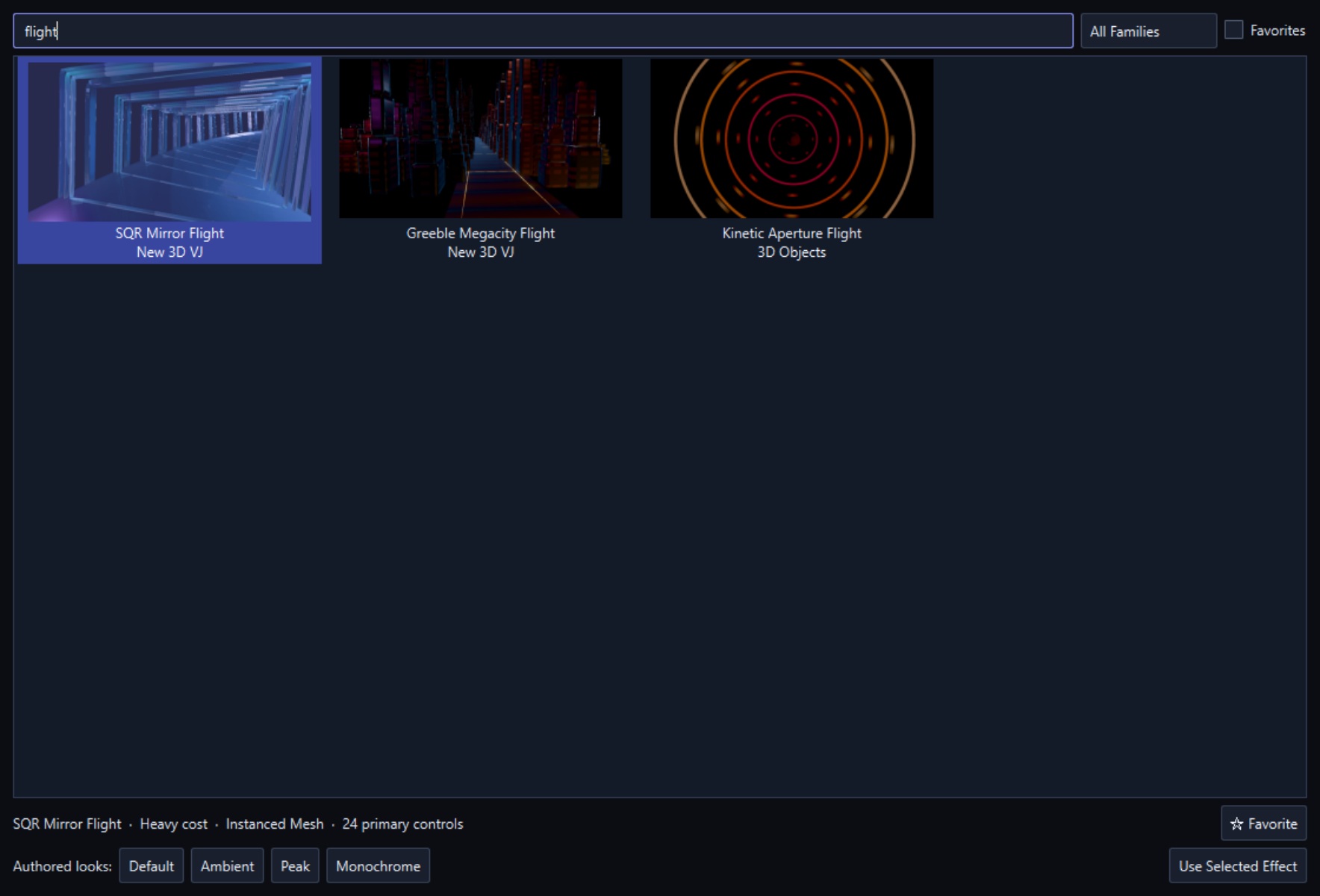
Each effect includes authored looks such as Default, Ambient, Peak, and Monochrome when available. Use these as starting points, then adjust the exposed controls. Changes update in the live preview immediately.
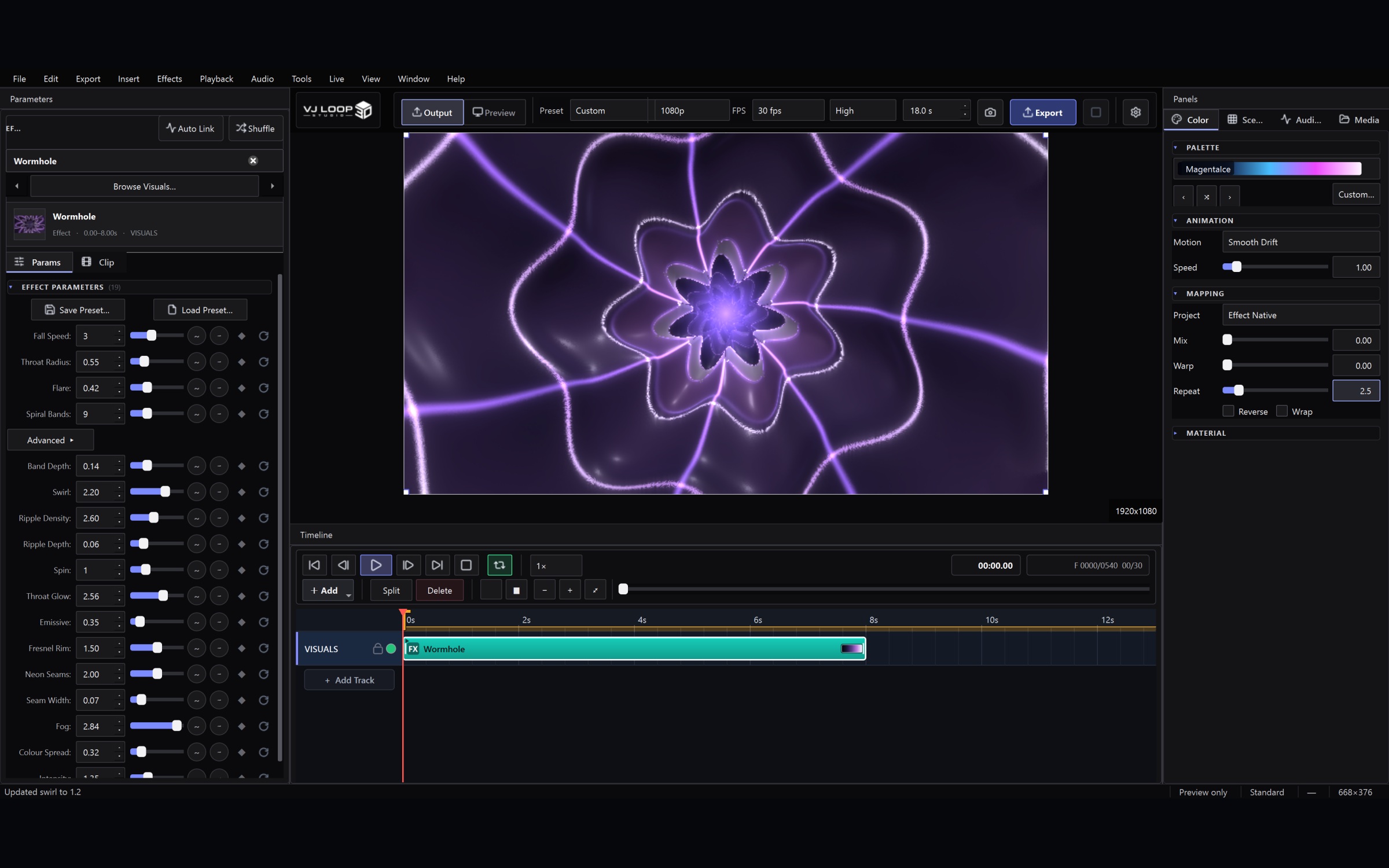
Color, surface, and lighting
The Color & Surface tab controls palette mapping and palette motion. Surface controls adjust roughness, metallic response, material style, tint, emission, and related lighting behavior for compatible 3D effects.

Useful starting points:
- Use a restrained two- or three-color palette for brand work.
- Keep motion slow for architectural and volumetric scenes.
- Use emission and rim controls to preserve silhouettes on LED walls.
- Save successful combinations as presets before experimenting further.
Build the timeline
Click Add to create a clip, then choose its type. Clips can be moved, trimmed, split, faded, layered, and assigned to tracks. A selected clip exposes its settings in the Parameters panel.

The transport bar provides play, step, reset, loop/work-area controls, preview-cache controls, current time, and frame information. Press Space to play or pause.
Use multiple tracks when you need overlays, text, audio, or separate scene elements. Track order and clip blend settings determine how layers are composited.
Add media, text, and 3D models
The timeline accepts:
- Images and video for logos, textures, overlays, or source footage.
- Text and lyrics for titles, labels, and timed lyric cues.
- OBJ, glTF, and GLB models with transform, material, texture, lighting, and camera controls.
- Audio for playback and audio-reactive parameter links.
- Overlay clips for non-destructive visual layering.
Use the Media tab to import once and place as often as you like. It lists everything the project contains, with search and a type filter. Removing an item removes it from the list only — the file stays and any clips already using it keep working.
Imported files are copied into the project workspace, so the project stays portable. Keep the project folder intact when moving work to another machine; anything referenced from elsewhere on your disk will be missing.
Audio-reactive controls
Compatible parameters can be linked to nine analysis sources: bass, midrange, treble, loudness (RMS), detected beat, low blend, high blend, body, and spectral brightness. Choose a source, then tune amount, smoothing, range, and response direction. Use subtle values first; strong modulation is most effective on a small number of important controls. The audio-reactive guide covers what each source is best at.
The Audio Link tab sets the source for the whole project: all timeline clips, one specific clip, or live input from an interface or line-in. Master gain, per-band trim and a gate shape everything downstream, and meters show what the analysis is actually seeing. Exports always fall back to timeline audio, since live input cannot be reproduced in a file.
For motion that should not depend on sound, use a modulator instead. The button beside each parameter offers seven shapes — sine, triangle, saw, envelope, random step, sample & hold and macro — with rate, phase, smoothing and BPM sync.
Auto Audio Link (Tools menu) analyses the timeline’s audio for the selected effect clip and proposes measured links for its parameters. One click applies them, and each link stays editable afterwards.
Preview and live output
Preview quality can be reduced while editing without changing final export quality. Performance Mode prioritizes smooth interaction, while the diagnostics overlay helps identify expensive scenes. Live output options include a secondary display and supported Spout or NDI workflows.
For performing, open the Live Console (Ctrl+Shift+L). It gathers every live setting into one non-modal window you can leave open on a second screen, organized in four tabs: Output (display, Spout and NDI, output quality, frame-rate cap), Setlist (the live cue list), Performance (preview fidelity and the diagnostics overlay), and Control (MIDI and OSC). Blackout (Ctrl+Shift+B) is the panic button — it cuts output to black without stopping playback, so the timeline keeps running and the show resumes in sync. The console can be kept always-on-top or pushed full screen (F11), and a footer of readouts stays visible whichever tab is open.
The Setlist tab turns saved scenes into performance cues. Build the order in advance, then fire cues with GO (Ctrl+Right): the next scene is loaded and cued while the current one plays, so the change lands cleanly on a beat. Ctrl+Left steps back to the previous cue.
A MIDI controller can drive parameters directly, and pads can fire global actions: blackout, play/pause, tap tempo, scene launch, and the output toggles.
Export
Set the project resolution, frame rate, duration, format, and codec before starting the final render. MP4/H.264 is the broadest compatibility choice; MKV, AVI, MOV, and animated GIF are available for specific production requirements.
Export presets set resolution, framerate, container, and codec in one click: YouTube 1080p, YouTube 4K, Instagram Square, TikTok / Reels, VJ Loop (ProRes-grade) MKV without audio for live playback, LED Wall 4K MKV, and Draft Preview for fast check renders. Everything stays editable afterwards. Quality tiers — Draft, Good, High, Master — drive the encoder through CRF rather than a fixed bitrate, so the same preset scales to any resolution. The export guide explains which to use for a venue, an LED wall, or a social clip.
Click Export to render the timeline. The final output uses the full render pipeline, including compositing, post-processing, color, and enabled anti-aliasing settings. Avoid moving project media until the export has completed.
Practical workflow
- Set the output aspect ratio and duration.
- Choose an effect and an authored look.
- Establish palette, surface, and motion.
- Arrange clips and timing on the timeline.
- Add audio links, overlays, text, or models only where they strengthen the visual.
- Preview the loop boundary and check for visible jumps.
- Save the project, then export a short test before the final render.
Frequently asked questions
- What is VJ Loop Studio 3D?
- A Windows desktop application for creating original motion visuals. It combines 124 built-in GPU effects, a multi-track timeline, audio-reactive controls, 3D model support, and video export in one program — so a loop can be designed, arranged, and rendered without moving between tools.
- Do I need to know how to code or use node graphs?
- No. Every effect is a finished visual with labelled parameters, and the timeline works like any video editor. There is no shader authoring or patching involved.
- Can I use it live, or only to render files?
- Both. It renders finished video files, and it also performs live: a fullscreen output to a projector or LED processor, Spout and NDI to other applications, MIDI and OSC control, and a blackout that cuts output without stopping the timeline.
- Is it a subscription?
- No. It is a one-time licence at €99 (+VAT), with no recurring charge.
- What hardware does it need?
- A Windows 10 or 11 machine with a GPU that supports modern graphics APIs. Preview quality and a frame-rate cap are adjustable independently of export quality, and Performance Mode trades preview fidelity for interaction smoothness on lighter hardware.
- Can I use the visuals commercially?
- Yes. Loops you create are your own work — the licence covers commercial use in club sets, streams, installations, and client work.
Where to go next
- The complete effect gallery — real renders from all 124 effects.
- Neon tunnel effects — the 3D tunnel family and how to shape it.
- Fractals, crystals, and liquid geometry — the raymarched effects.
- Audio-reactive visuals — every source, route, and modulator.
- Setting up for a live set — outputs, MIDI, and blackout.
- Send visuals to Resolume, OBS, TouchDesigner — Spout and NDI.
- Exporting VJ loops — presets, codecs, and destinations.