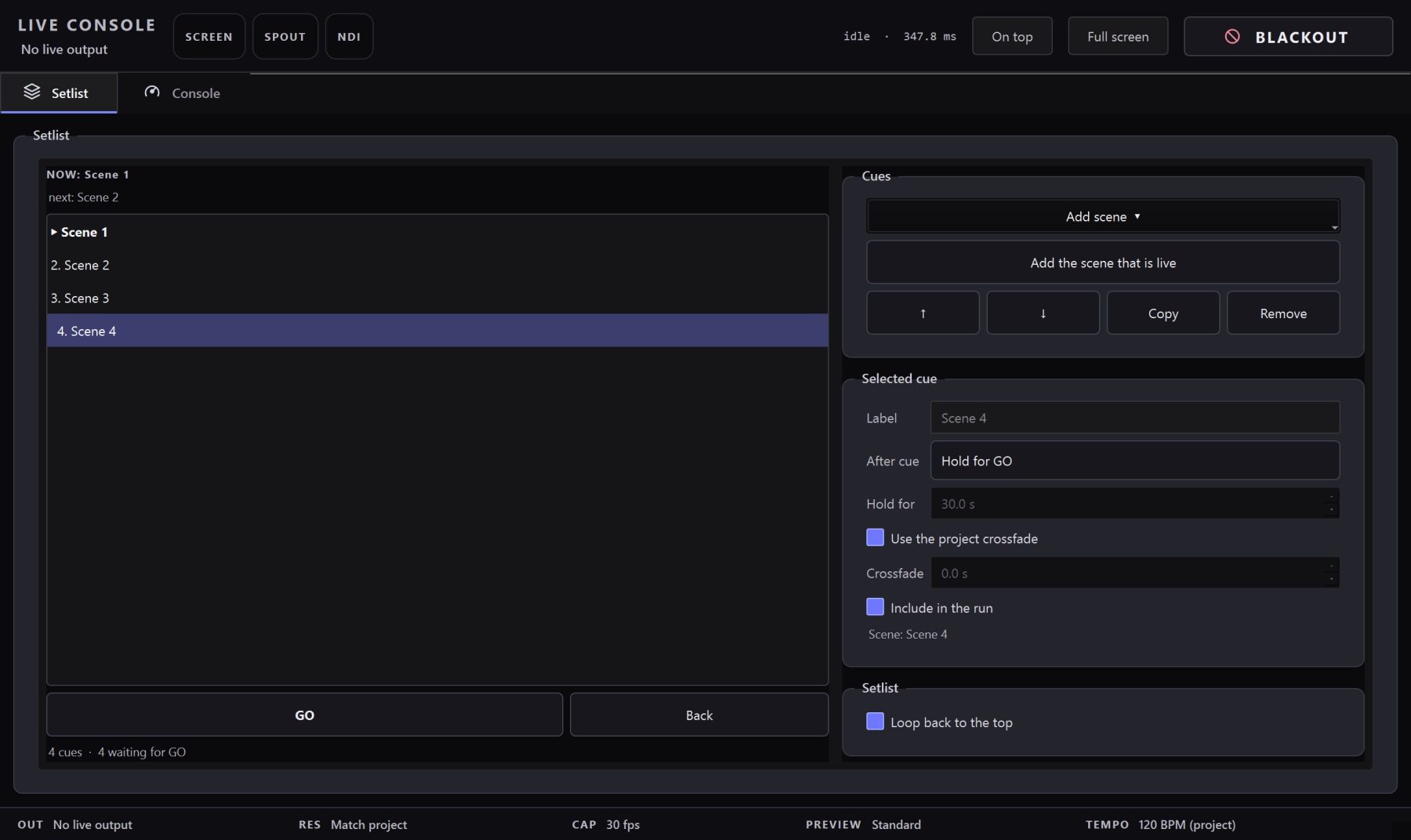
Spout is how live visuals move between applications on a Windows machine. One app sends frames, another receives them — with no file, no network, and no compression in between. It is the standard handshake in the VJ world for a simple reason: the frames stay on the GPU, so the transfer is essentially free.
This guide covers the two setups you will actually use — OBS Studio for streaming and recording, and Resolume for mapping and mixing — plus the others that speak Spout, and why VJ Loop Studio 3D is built to be the best sender in that chain.
Spout at a glance
| What it is | GPU-to-GPU frame sharing between two apps on the same Windows PC |
|---|---|
| Latency | Essentially zero — frames never leave the GPU, never get compressed |
| Sender name | VJ Loop Studio 3D appears in every receiver’s source list |
| Where it is | Live Console → Outputs → Spout Output (or Live menu) |
| Also on the same rig | NDI for other machines, fullscreen mirror for a projector |
| Platform | Windows 10/11 — Spout does not cross platforms |
What Spout actually is
Spout is a shared-memory frame handoff between two processes on the same Windows PC. The sender renders into a GPU texture and hands the receiver a pointer to it; there is no encode step, no colour conversion, and no added latency worth measuring.
That is why it exists and why it is Windows-only: it leans on DirectX texture sharing. On a Mac the equivalent is Syphon, and the two do not talk to each other. If you need to reach another machine, that is what NDI is for.
The practical consequences for a live show:
- It is real-time by construction. What you see in the receiver is what is rendering this frame.
- It costs the GPU almost nothing. Sharing a texture is not rendering a second copy.
- It only works on one PC. Resolume on a second machine needs NDI instead.
The 30-second version
- Open the Live Console (
Ctrl+Shift+L). - In the Outputs group, tick Spout Output.
- In the receiving app, pick the source named VJ Loop Studio 3D.
That is the whole mechanism. The rest of this guide is the receiving end and the settings that matter.
The console is non-modal, so you can leave it open on your laptop screen while the main window sits on the other display — and the status line at the top tells you what is actually going out and at what frame rate, which is where you look first when a receiver shows nothing.
OBS Studio
OBS needs the free Spout2 plugin (win-spout) to receive Spout. Install it, then:
- Enable Spout Output in the Live Console.
- In OBS, click + in the Sources dock and choose Spout2 Capture.
- Select the VJ Loop Studio 3D sender, or leave Use first available sender on when it is the only one.
The source appears and frames flow immediately. It behaves like any other OBS source: position, scale, filters, transitions — all normal.
Two settings worth touching before you go live:
- Cap the output frame rate to match your canvas. If OBS is set to 60 fps, cap VJ Loop Studio 3D’s output at 60 in the Live Console. Mismatched rates show up as judder on high-motion content.
- Turn on Performance Mode when OBS shares the GPU. Encoding a stream on the same card that renders your visuals is exactly the case it was built for; it trades preview fidelity for headroom.
Resolume Arena and Avenue
Resolume speaks Spout natively — no plugin, no install.
- Enable Spout Output in the Live Console.
- In Resolume, open the Sources panel and find the Spout section.
- Drag the VJ Loop Studio 3D source onto a layer.
From there it is an ordinary Resolume clip: layer blend modes, effects, masks, and Advanced Output mapping all apply. That is the whole point of a generator — VJ Loop Studio 3D makes the visuals, Resolume shapes where they land.
Same two notes as OBS, with a twist:
- Match frame rates. Resolume composites at whatever you set its project to; cap the output to match.
- Resolution is set on the sender. The Spout frame is exactly the output resolution chosen in the Live Console — set it there instead of upscaling in Resolume.
TouchDesigner and the rest
TouchDesigner has a built-in Spout In TOP — no plugin. Drop it in a network and wire it anywhere you would wire a texture. This is the usual route when VJ Loop Studio 3D generates the base and TouchDesigner layers the interaction or mapping on top.
Almost everything else on Windows that accepts live video accepts Spout: MadMapper, Notch, vMix, Millumin, and more. If an app lists Spout sources, it will list VJ Loop Studio 3D by name.
For receivers that do not speak Spout — anything on macOS, or anything on another machine — use NDI Output instead (same Live Console, one tick), or export a file for media servers that want files on disk.
Why VJ Loop Studio 3D is perfect for this
Spout only works well when the sender is reliable and the content is worth receiving. Both are the point of this app.
The renderer is GPU-native. The whole pipeline — compositing, effects, and the Spout handoff — runs in one wgpu (WebGPU) context. The frame that reaches OBS or Resolume never round-trips through the CPU, so there is no extra copy and no colour conversion sitting between you and the audience. Sending is not an afterthought bolted on to a CPU renderer; it is the same frame the preview draws, shared directly.
The content is built for looping. All 124 effects are loop-seamless by construction — the animation advances in whole steps per loop, so nothing drifts across the seam. A Spout feed that carries a 30-second seamless loop is a different thing from a feed carrying a clip that visibly stutters on repeat. When the receiver runs your content on a loop all night, that is the difference between a set and a screensaver.
Outputs are a first-class surface, not a hidden menu. The Live Console puts Spout, NDI, screen output, output resolution, frame rate, and Performance Mode in one window, with a live status readout. The blackout control cuts every output — including the Spout feed — to actual black rather than a frozen frame, which matters when a capture card or stream encoder is watching.
It fails safe. If the Spout runtime is missing, the toggle stays inactive and the app keeps running — an output problem never takes the show down. And because output toggles are MIDI-mappable, arming and killing the Spout feed is a pad hit, not a mouse hunt in the dark.
One generator, your whole rig. A projector mirror, a Spout feed to Resolume for mapping, and an NDI stream to the encoder can all run at once. You build the visuals once, and every destination gets the same GPU-native frames.
Troubleshooting Spout
The source does not appear in the receiver. The output has to be enabled, not merely installed. Check that the Spout Output toggle in the Live Console shows as active and the status line reports it. A sender that was never opened does not advertise itself.
The receiver is showing a frozen frame. Check the status readout — if the frame rate is 0, the output has stopped. This happens on laptops that throttle the GPU under load; enable Performance Mode and lower the output resolution before touching the receiver.
Frames stutter. Cap the output frame rate to match the receiver’s canvas, and check whether the GPU is also encoding a stream — that is what Performance Mode exists for.
Colours look different in the receiver. The sender passes exactly what the preview renders. If the receiving app applies its own colour management or a blend mode, that is where the change happens — compare against a fullscreen output to see the unprocessed frame.
Frequently asked questions
- Does OBS need a plugin to receive Spout?
- Yes. Install the free Spout2 plugin (win-spout), then add a Spout2 Capture source in OBS. With the plugin installed, the source finds VJ Loop Studio 3D by sender name and starts receiving frames automatically.
- Does Resolume need anything installed?
- No. Resolume Arena and Avenue speak Spout natively on Windows. Open the Sources panel, find the Spout section, and drag the VJ Loop Studio 3D source onto a layer.
- Is Spout or NDI better?
- Spout for another app on the same PC — no added latency, no compression, no network. NDI when the receiver is on another machine. Both can run at the same time.
- Why is my Spout source missing from the receiver?
- The output must be enabled, not merely installed. Tick Spout Output in the Live Console and check the status readout at the top. If the SpoutGL runtime is missing, the toggle stays inactive rather than crashing the app.
- What frame rate should I send?
- Match the receiver. If OBS or Resolume composites at 60 fps, cap the output at 60 in the Live Console. A 30 fps source on a 60 fps layer shows as judder on fast tunnel content.
- Can I control Spout output from a MIDI controller?
- Yes. Output toggles are MIDI-mappable, so you can arm and kill the Spout feed from a pad without touching the laptop.
Where to go next
- Send visuals into Resolume, OBS, TouchDesigner, and MadMapper — the full routing reference, Spout, NDI, and files.
- Setting up for a live set — outputs, MIDI mapping, and a blackout you can trust.
- The complete effect gallery — real renders of all 124 effects.