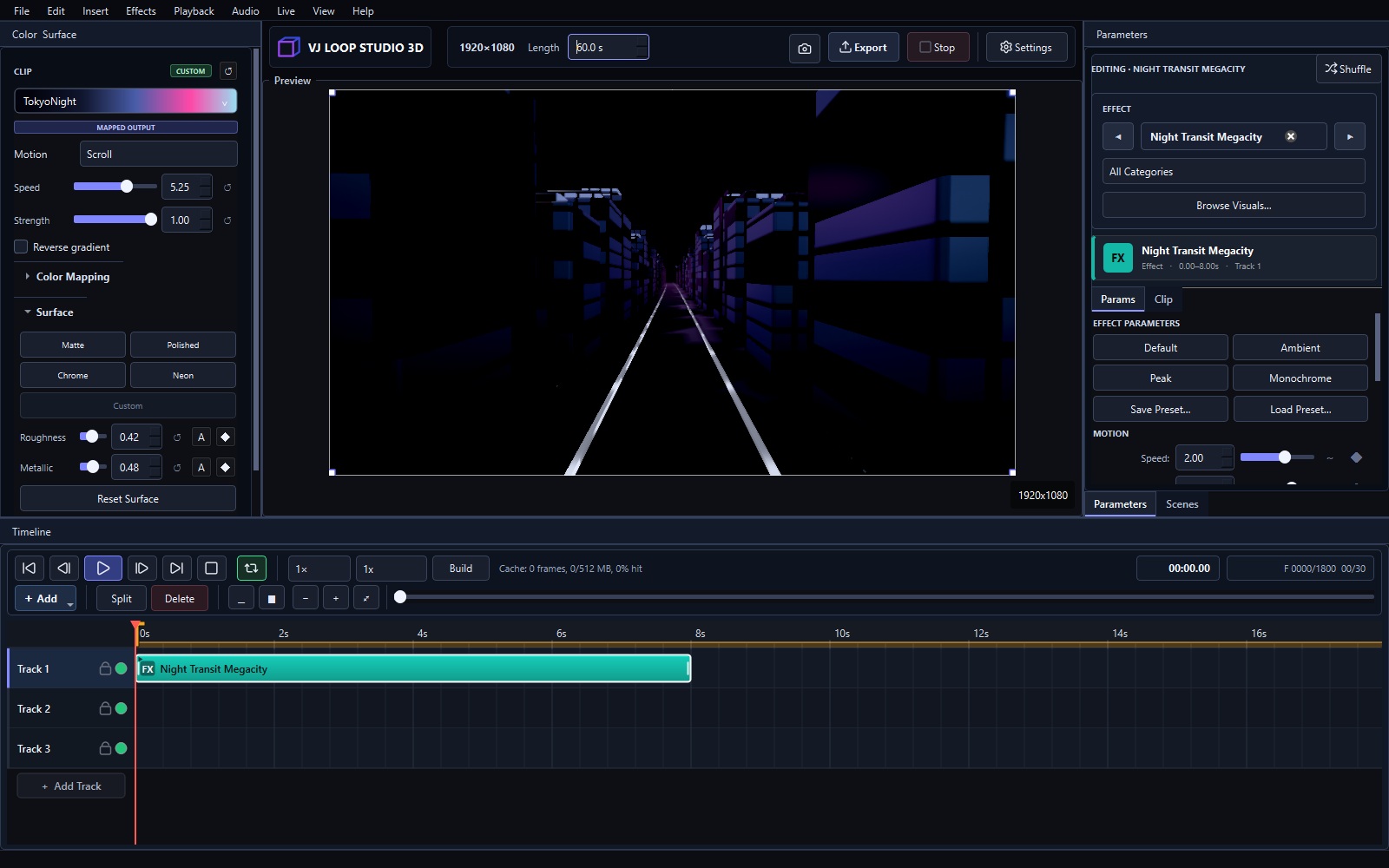
VJ Loop Studio 3D creates and exports standard video files. It does not configure LED controllers or send Art-Net/sACN data directly. Use the exported file in LEDEdit or another LED application only when that application supports the chosen container and codec.
Match the target canvas
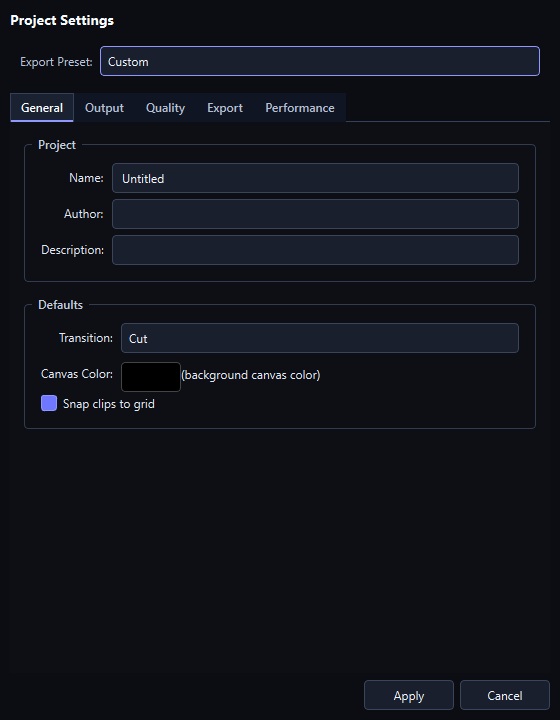
Before designing, confirm the pixel dimensions, aspect ratio, frame rate, and accepted video formats of the target LED workflow. Enter those dimensions in Project Settings so composition decisions are made against the real canvas.
Choose and customize an effect
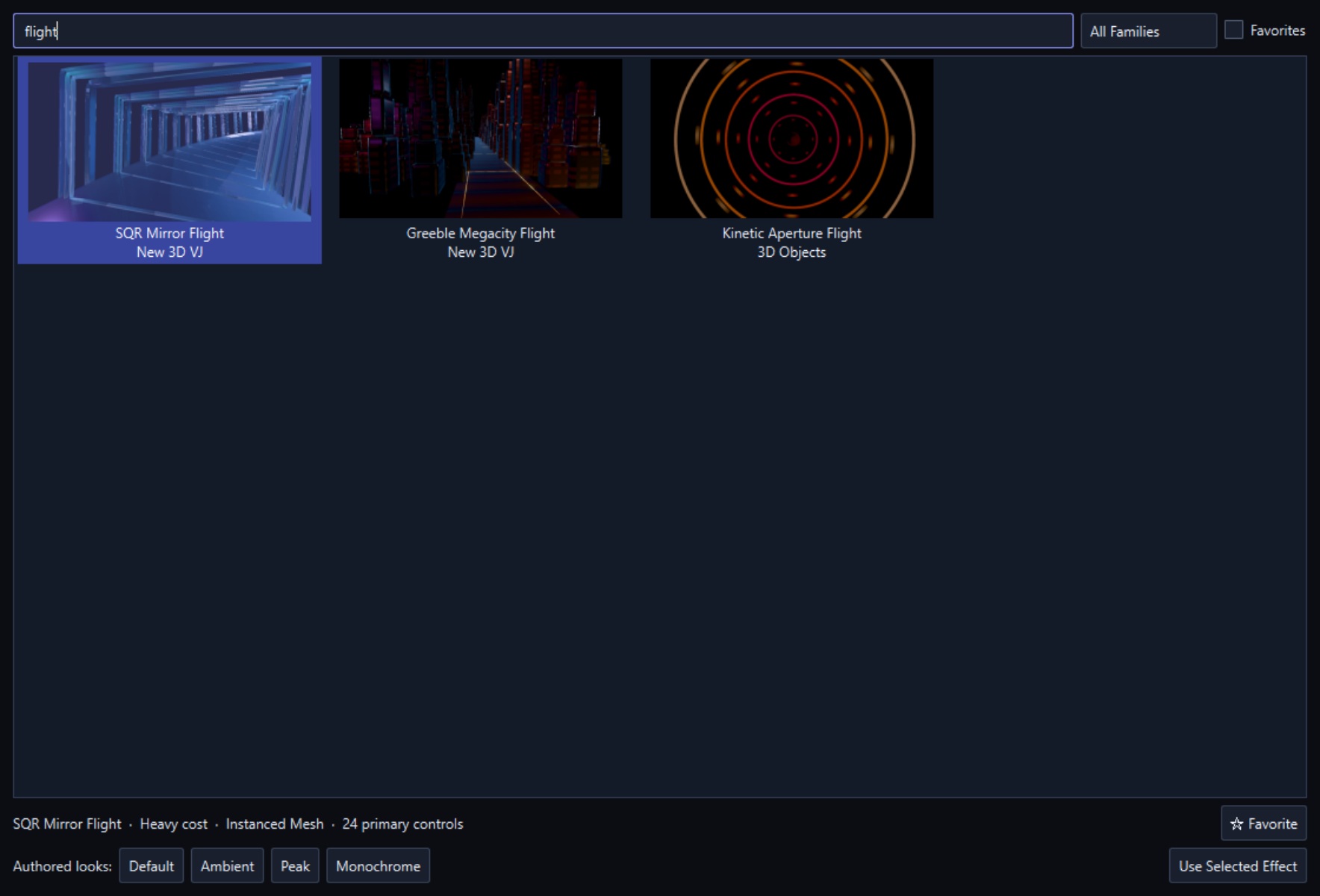
Browse the 124-effect catalogue and choose a visual that remains readable at the target pixel density. Large shapes and clear contrast generally survive low-resolution LED mapping better than very fine detail.
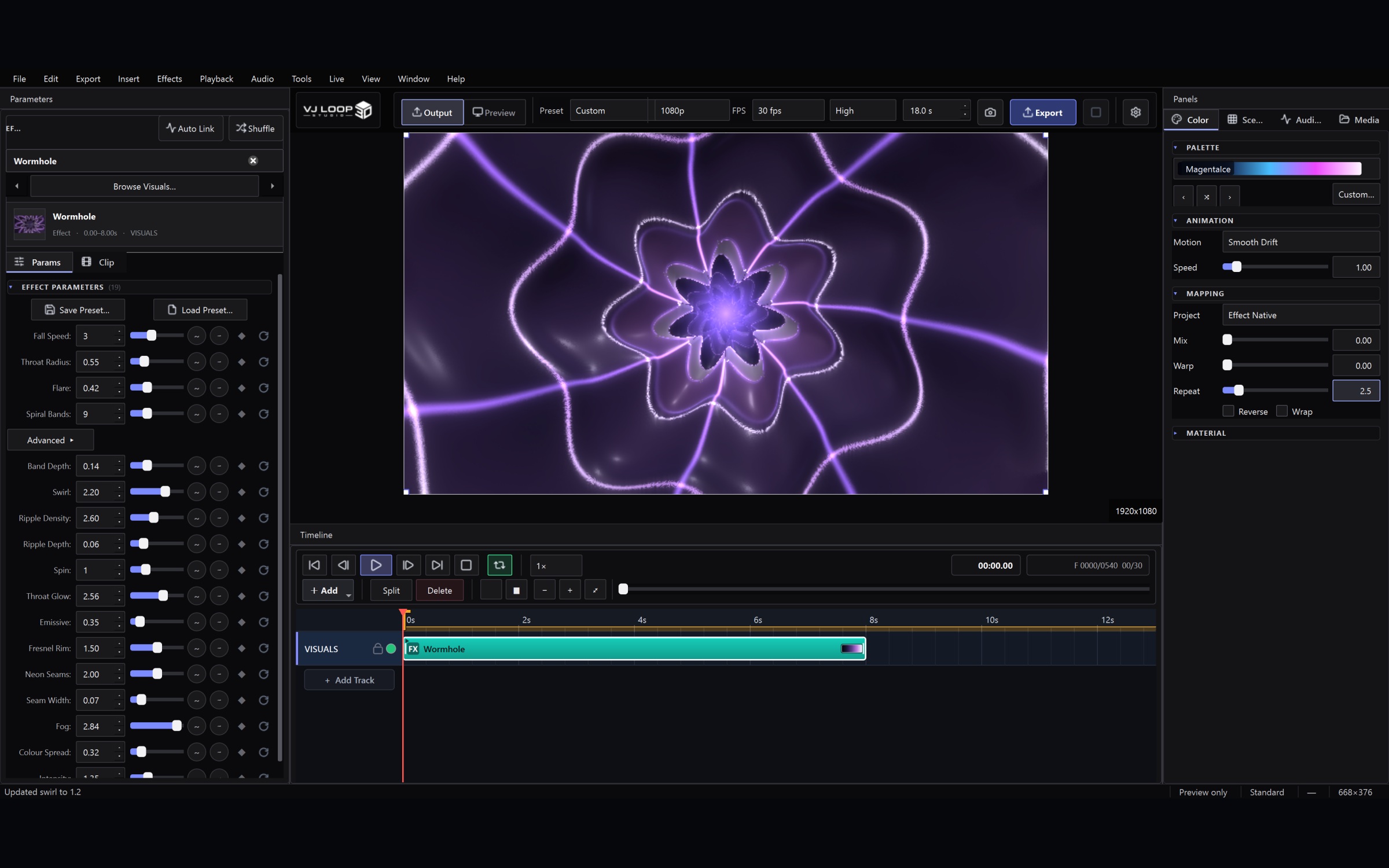
Adjust effect parameters, palette, surface, and motion while watching the live preview.
Check motion and loop timing
Set the work area to the intended loop length, then preview the final seconds and the return to the first frame. Use the timeline for overlays, text, models, media, and audio when the composition requires them.

Export a compatibility test
AVI is commonly useful in older LED workflows, while MP4 or MKV may be accepted by newer software. Actual support varies by application version and codec installation, so render a short test before producing the final file.
After import into the target application, verify scaling, frame rate, color range, loop timing, and playback performance on the real hardware. VJ Loop Studio 3D cannot guarantee compatibility with third-party applications or controllers.
Browse all 124 real effect renders to choose a starting point.